Sep 4, 2026
How to Hide Your Email on Instagram (3 Steps)
Remove your email from Instagram bio and settings to hide contact info. Switch from Business to Creator account for more privacy control.
 Rena Sato 佐藤玲奈585 words3 min read
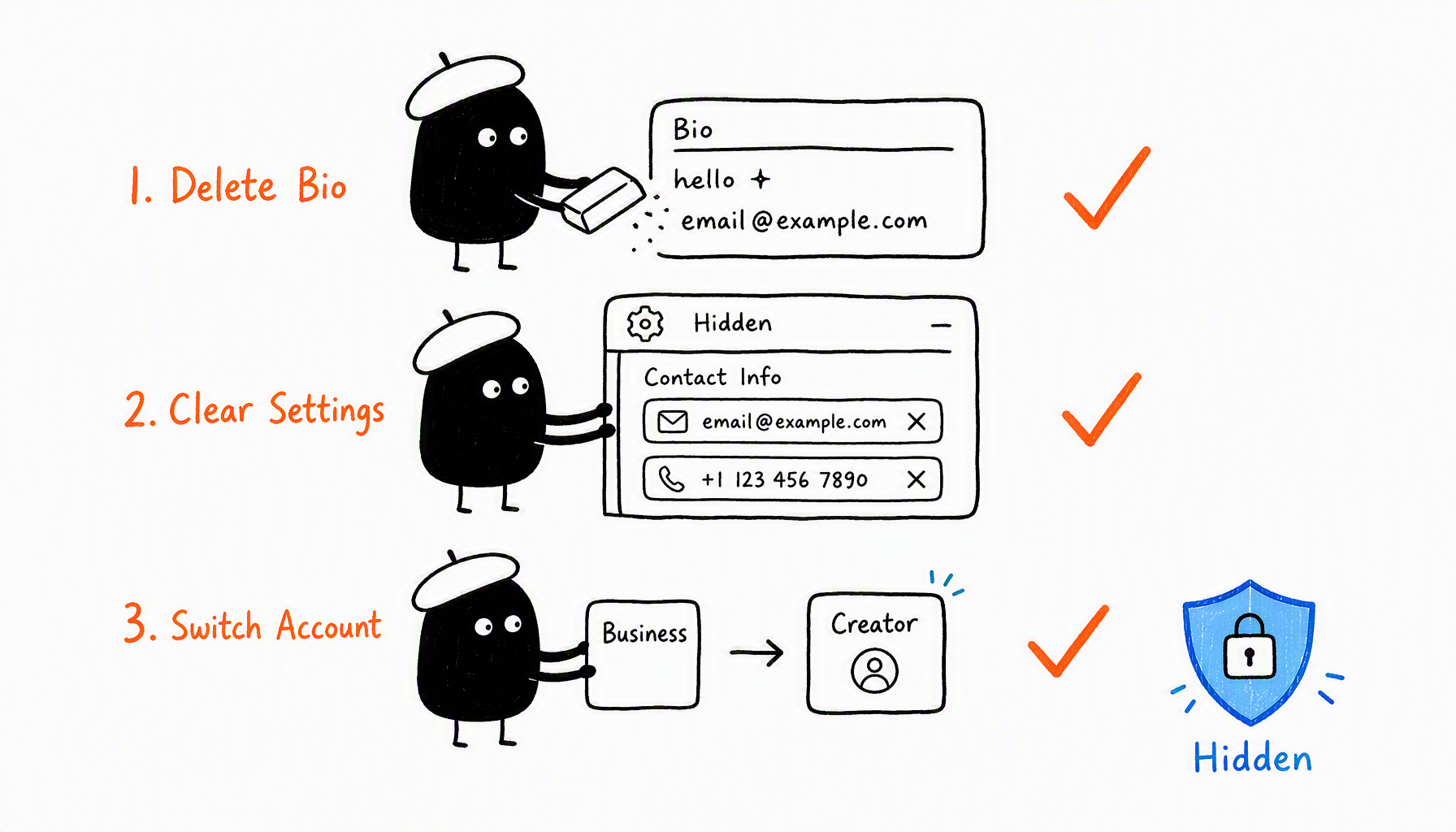
Go to Settings → Privacy → Contact Info and delete all fields, then remove the email text from your bio. Those two steps hide your email from public view.
Your Instagram email gets 15 "collaboration requests" daily. Fourteen are spam. You want real brand partnerships, not dropshipping pitches and bot DMs.
Here's how to hide your email on Instagram in three steps while still staying open to legitimate opportunities.
Key Takeaways
• Instagram's "Contact" button pulls from Settings → Privacy → Contact Info, not your bio text
• Business accounts force-display contact info; switch to Creator account for privacy control
• After hiding, brands can only reach you through DMs (unless they use cross-platform matching tools)
Step 1: Remove Email from Your Bio
Your bio's email is plain text you typed manually. To remove it:
- Tap your profile, then Edit Profile
- Delete the email text from the Bio field
- Save
This removes the visible email text, but the "Contact" button may still show if you filled out contact info in settings.
Step 2: Delete Contact Info in Settings
The "Contact" button below your bio pulls from a separate settings page. Many creators don't realize this exists.
Path: Profile → Menu (☰) → Settings → Privacy → Contact Info
Delete every field: email, phone, address. Save changes. The Contact button disappears from your profile.
When Sarah, a 22K fashion creator, removed her bio email but kept getting spam, she discovered this hidden settings page still listed her work email. Clearing it cut inbound spam by 80% overnight.
Step 3: Switch from Business to Creator Account (If Needed)
Business accounts force-display a contact button and business category. If you switched to Business for analytics, you can get the same features in a Creator account with more privacy control.
Path: Settings → Account → Switch to Creator Account
You keep Insights, post scheduling, and DM filtering. You lose the forced contact display and can choose whether to show email publicly.
What Happens After You Hide Your Email
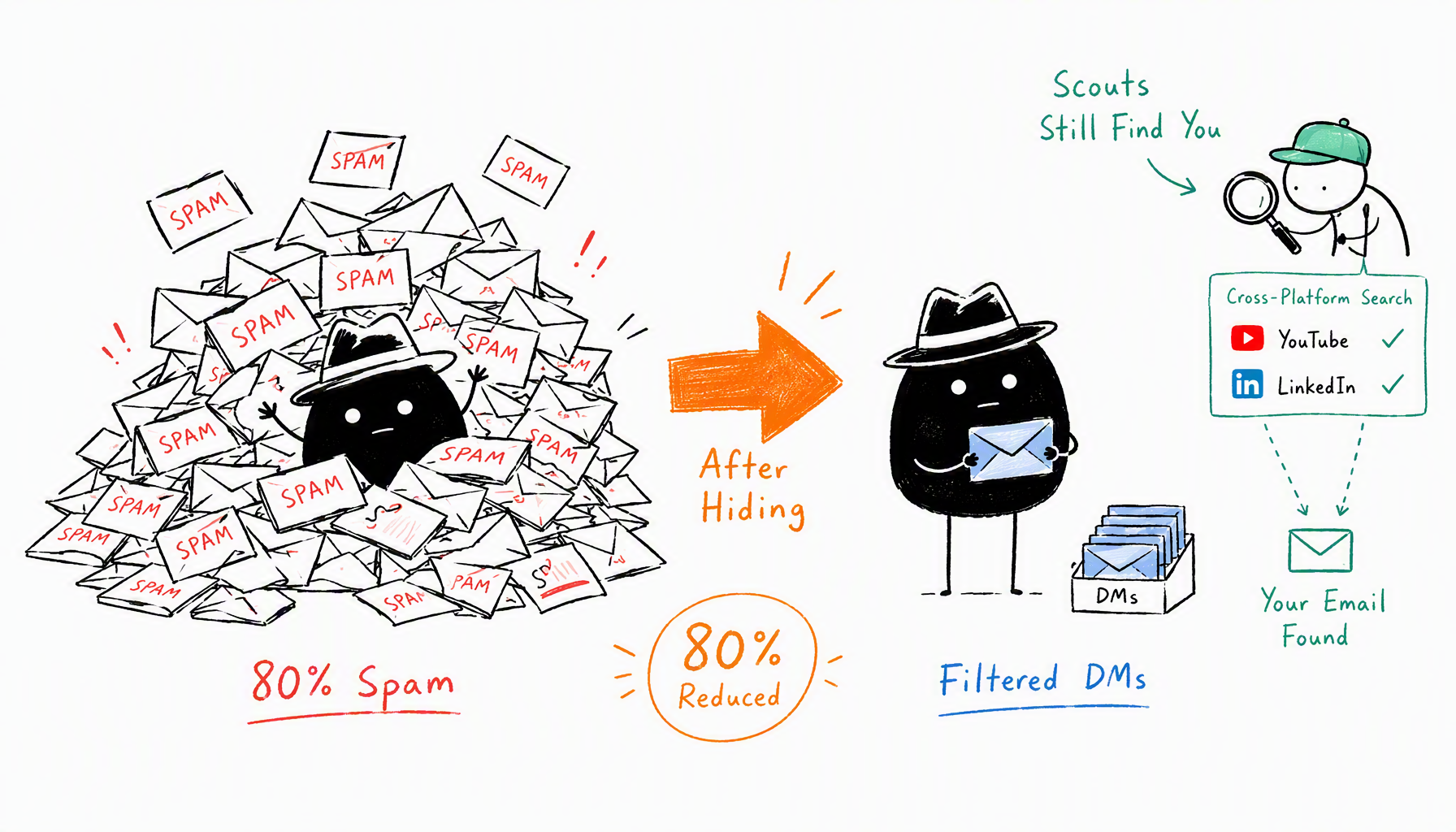
What you gain:
- 80%+ reduction in spam outreach
- Control over who contacts you (DM-only)
- Privacy from random contact scraping
What you might lose:
- Legitimate brand deals that don't want to DM first
- Partnership managers who filter for "easy to contact" creators
Here's the reality: even if you hide your email on Instagram, professional influencer scouts still find creator contact info by cross-referencing YouTube, TikTok, and LinkedIn. If your email is public on any platform, serious brands will find it using cross-platform tools.
Hiding on Instagram filters out lazy spam, not determined outreach.
Better Alternative: Use a Separate Contact Email
Instead of going invisible, create a dedicated collaboration email and list only that one publicly.
Example setup:
- Personal email: sarah.chen.private@gmail.com (keep this hidden)
- Collab email: collabs@sarahchen.com (public on Instagram)
Set up filters on the collab address to auto-archive obvious spam. You stay reachable for real opportunities without exposing your main inbox.
Or replace the email entirely with a contact form (Calendly, Typeform, Google Forms) in your bio. Bots can't spam forms as easily.
The Takeaway
Three steps to hide your Instagram email: clear your bio text, delete Settings → Privacy → Contact Info, and switch from Business to Creator if needed. You'll block 80% of spam, but serious brands using cross-platform tools will still find you.
If you want to stay reachable without the noise, use a separate collab email or contact form instead of going completely dark.
Managing influencer outreach at scale? Try CreatiVault's Instagram email finder to find creator contacts across platforms.
 Sophie Klein